
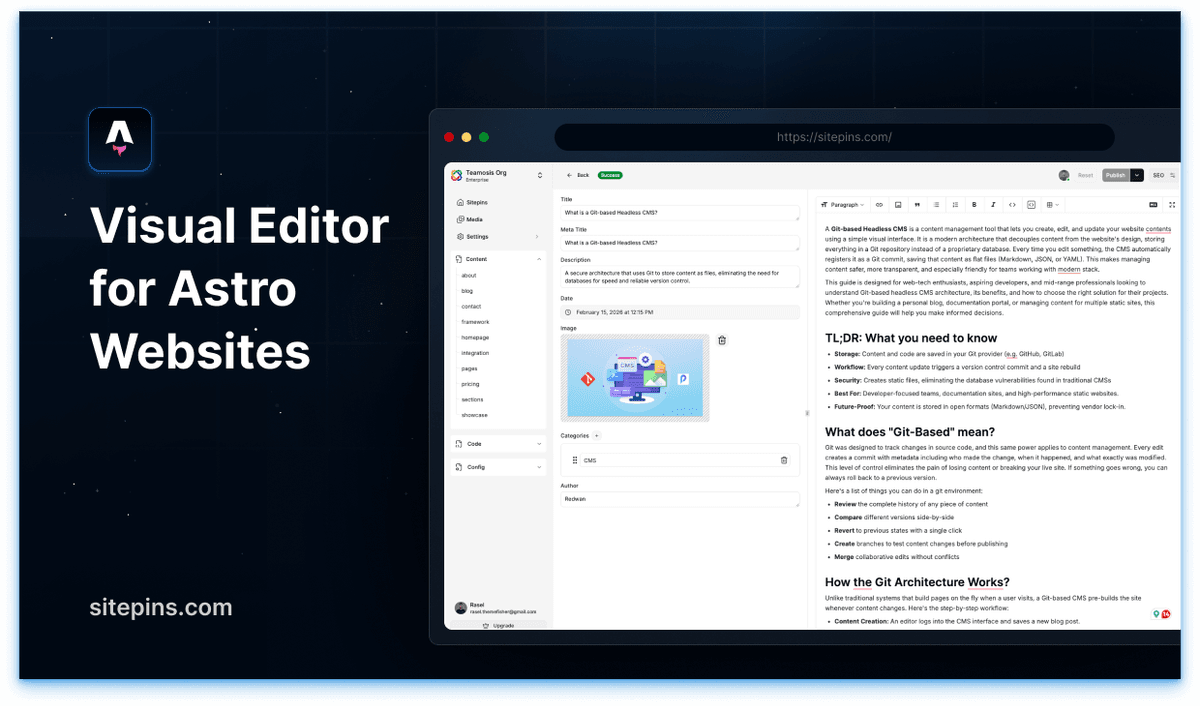
Astro doesn’t come with an admin panel. There’s no login screen, no dashboard, no editor UI. Your content sits as Markdown files in src/content/, and changing it means opening a code repository.
So how can you enable others to edit your Astro site?
There is a solution. Connect your repository to an Astro visual editor like Sitepins. Setup takes about 10 minutes and requires no code changes. Point it at your src/content/ folder and invite your editor by email. They work in a form-based interface, never in Markdown or Git. Every save becomes a commit in your repository and triggers your existing Vercel or Netlify deploy.
This tutorial covers the complete setup for Astro sites. It also covers the exact editor experience your non-technical user will have once it’s live.
TL;DR, Key Takeaways
- Astro sites built with Content Collections work out of the box. No
astro.config.mjschanges required - Editors see a clean form interface, not code or file trees
- Every save becomes a Git commit, so your deploy pipeline triggers automatically
- Editors do not need a GitHub account
- 34% of Sitepins users build on Astro, so the CMS is purpose-tested against Astro’s content model
- Setup takes 10 to 15 minutes. Editor onboarding takes under 5
What Is an Astro Visual Editor?
An Astro visual editor is a separate web interface that lets your editor create, edit, and publish content. They access it at a URL, not in your codebase. They never touch Markdown files, frontmatter syntax, or Git.
Under the hood, an Astro visual editor writes directly to your existing files. It edits the same .md and .mdx files in src/content/ that you work with as a developer. The difference is presentation. You open a .md file in VS Code and edit raw text. Your editor opens a form with labelled fields (Title, Date, Body, Featured Image) and a rich text toolbar.
The body field is a WYSIWYG editor. Text appears close to how it will publish, so an Astro WYSIWYG editor removes the gap between writing and previewing.
When they save, the CMS commits the updated file to your GitHub or GitLab repository. From your side, it looks identical to a commit you made yourself. The file changes are in Git history, reversible, and auditable.
What it is not: An Astro visual editor is not a page builder, drag-and-drop layout tool, or site redesign interface. It manages content: words, images, metadata. It does not manage design or code structure. If you are searching for a visual builder for Astro and expecting a layout canvas, this is a different category of tool.
Why Non-Technical Editors Struggle with Astro by Default
Astro is a developer-first framework. Its content layer is powerful and predictable for developers. That layer includes Content Collections, frontmatter schemas defined in src/content/config.ts, and Markdown and MDX files. For non-technical editors, it presents three specific problems.
1. No editing interface ships with Astro.
Astro has no built-in CMS panel or admin UI. A non-technical user handed access to a GitHub repository will see a file tree, not an editorial interface. They cannot edit content without understanding Git, Markdown syntax, and file structure.
2. Frontmatter syntax is fragile for non-developers.
A content entry in Astro looks like this:
---
title: "How We Built Our Product"
date: 2026-03-15
description: "A case study about our build process."
image: "/images/product-build.jpg"
draft: false
tags: ["product", "engineering"]
---

Body content starts here...
A non-technical editor making a direct edit to this file on GitHub can easily break frontmatter syntax. A missing quote, a misformated date, or a stray character causes a build failure. The editor sees nothing, but the entire site deploy breaks.
3. Publishing requires understanding Git.
Even if an editor successfully edits a file in GitHub’s web interface, they need more context. They need to understand what “commit to main” means and what a pull request is. They also need to know why their changes may not appear immediately on a branch.
A dedicated CMS layer removes all three problems.
What You Need Before You Start
- An Astro site with content in
src/content/using Content Collections, or plain.mdfiles insrc/pages/ - The site hosted on GitHub (all plans) or GitLab (Team plan and above)
- Private repositories are supported on every plan. The free Hobby plan covers 1 private repo
- A Sitepins account. Start free at sitepins.com
- Your Astro site already deployed on Vercel, Netlify, or Cloudflare Pages (optional, but required for the automatic deploy pipeline)
- Your editor’s email address
You do not need to install any npm packages, modify your astro.config.mjs, or make any changes to your repository before starting.
Step-by-Step: Connect Sitepins to Your Astro Site
Step 1: Create a project in Sitepins
Sign in to app.sitepins.com and click New Project. Sitepins will prompt you to connect a Git provider. Choose GitHub, or GitLab if you’re on the Team plan or above, and authorise the OAuth connection. You’ll see a searchable list of your repositories.
Select the repository containing your Astro site and click Continue.
Sitepins reads your repository’s file structure at this point. It does not commit anything to your repo during setup.
Step 2: Select your content folder
Sitepins shows your repository’s directory tree. Go to the folder containing your content files.
For a standard Astro Content Collections project:
- Choose
src/content/blog/to give editors access to blog posts only - Choose
src/content/to expose all collections (blog, docs, authors, etc.)
Click Confirm. Sitepins scans the folder, detects your .md and .mdx files, and lists them as editable entries.
If you have multiple content types: You can add multiple folders as separate sections. Editors see them as labelled groups in the sidebar (Blog, Docs, Authors) and switch between them with one click.
Step 3: Confirm your content schema
Sitepins reads the frontmatter fields in your existing content files and builds an editing form automatically. You do not need to define a CMS schema separately.
Check that the detected fields match what you’d expect:
title→ single-line text fielddate→ date pickerdescription→ multi-line text areaimage→ media picker with upload supporttags→ tag-adding widgetdraft→ toggle switch
If you use a Zod schema in src/content/config.ts, required fields appear in every entry’s form and cannot be saved empty. Optional fields appear but can be left blank.
Step 4: Set your media folder
Choose the folder where uploaded images should be stored. Common choices for Astro projects:
public/images/is served directly at/images/in the built site. It works for frontmatter image paths referenced by URLsrc/assets/is processed by Astro’s built-in image optimisation. It works for images imported in components
When an editor uploads an image, Sitepins commits it to this folder. It then inserts the correct path into the content field automatically. All media is stored in your repository. No external CDN or third-party asset service is added.
Step 5: Invite your editor
Open Settings → Team → Invite member in your Sitepins project. Enter your editor’s email address and assign the Editor role. Editor access allows them to create, edit, and delete content entries. It does not allow access to project settings, repository configuration, or billing.
Click Send invite. Your editor receives an email with a setup link. They create a password and access the editor directly. No GitHub or GitLab account required.
Setup is complete on your end.
What Your Editor Sees and How They Work
Your editor’s experience is entirely separate from your development workflow. Here’s what they encounter.
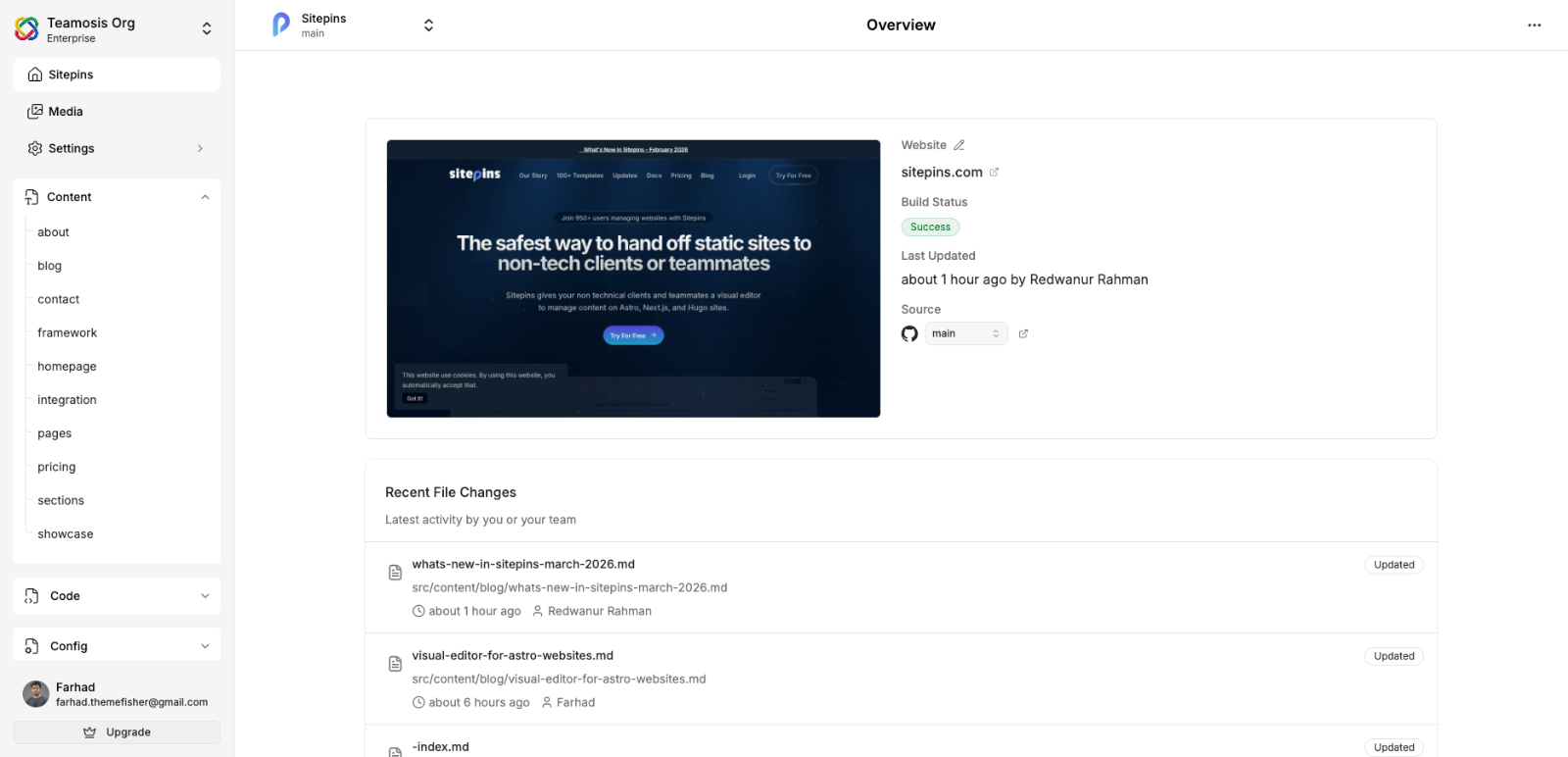
The content list
After logging in, the editor sees a clean sidebar with their content sections (Blog, Docs, etc.). Clicking a section shows a list of all content entries with titles, publish dates, and draft status. Entries can be filtered by status and sorted by date.
There is no file tree, no raw Markdown, no Git interface.
Opening and editing a post
Clicking an entry opens the editing view. The frontmatter fields appear as a structured form on the left, or on top on smaller screens. The body content appears in a rich text editor.
.png)
The body editor works like a simplified word processor:
- Visual mode: Toolbar with bold, italic, headings H1 to H4, links, ordered and unordered lists, blockquotes, inline code, code blocks, and image insertion. No Markdown knowledge required.
- Markdown mode: Raw Markdown for editors who prefer it. Both modes stay in sync. Switching between them preserves all content.
Adding images
The editor clicks the image icon in the toolbar or the image field in the frontmatter form. A media panel opens showing previously uploaded images. They can drag in a new file or click to browse. Sitepins handles the upload, Git commit, and path insertion without any developer input.
Saving and publishing
When the editor clicks Save, Sitepins commits the changed file to your repository’s default branch (main or master). There is no separate “publish” step visible to the editor. Save means the content goes live as soon as your deploy pipeline completes. That is typically 1 to 2 minutes on Vercel and 1 to 3 minutes on Netlify.
The editor sees a success confirmation with a note that the site is updating. They do not see a deploy log, build output, or any technical feedback.
Creating new posts
The editor clicks New Entry in the content section. A blank form opens with all the frontmatter fields from your schema. They fill in the fields, write the body, and save. Sitepins creates the .md file in your src/content/blog/ folder, or wherever you pointed it. The filename is generated from the entry title.
How Edits Flow Back to Your Codebase
Every save in Sitepins creates a standard Git commit. From your side, it looks identical to any other content commit:
- Editor clicks Save in Sitepins
- Sitepins creates a commit:
Update: "Post title"on yourmainbranch - The commit appears in your GitHub or GitLab repository history with the changed
.mdfile - Vercel, Netlify, or Cloudflare Pages detects the push and triggers a build
astro buildruns, and your updated content is deployed to the CDN- The live site reflects the editor’s changes, typically within 1 to 3 minutes
From your local machine, running git pull brings the editor’s content changes into your working directory as normal files in src/content/. The files are identical to what you’d write yourself. No proprietary format, no CMS-specific metadata appended.
Git history stays clean. Sitepins commits are clearly labelled. You can git revert any individual editor commit to undo a specific content change. You can git blame a content file to see the full edit history.
Using Branches to Add a Review Step
By default, Sitepins commits directly to your main branch, so editor saves go live immediately. If your workflow requires review before publishing, you can configure a staging branch.
How to set up a review workflow:
- Create a
stagingbranch in your GitHub repository - In Sitepins Settings → Project → Branch, change the target branch from
maintostaging - Editors now save to
staging. Their changes do not trigger a production deploy until you or they merge the branch.
When an editor is ready to publish, Sitepins lets them open a pull request from staging to main directly from the CMS interface. No GitHub knowledge needed. You review the PR and merge it when ready. Vercel or Netlify detects the merge and deploys the production build.
This workflow is useful for:
- Teams where a developer or manager reviews content before it goes live
- Sites where content errors have a high cost, for example legal or compliance review
- Multi-author setups where you want a centralised review step
Frequently Asked Questions
Which Git-based CMS work best for Astro websites?
Top Git-based CMSs for Astro include Sitepins, TinaCMS, CloudCannon, Keystatic, and Decap CMS. Sitepins and TinaCMS offer visual editing out of the box, with Sitepins providing zero-config integration with native Astro Content Collections.
How can non-technical editors update an Astro site without touching code or Git?
Non-technical editors can use a Git-backed visual CMS like Sitepins. It provides a clean visual interface that writes changes directly back to your GitHub repository as standard Markdown/MDX commits, keeping developers in Git and content managers in a web UI.
How can I enable others to edit my Astro site?
Connect your Astro repository to a Git-based visual editor such as Sitepins. Point it at your src/content/ folder and invite your editor by email. They get a form-based editing interface and never see Git or Markdown syntax. Every save they make commits to your repository and triggers your existing deploy pipeline. Setup takes about 10 minutes and requires no changes to your Astro project.
Does adding Sitepins require any changes to my Astro project?
No. You don’t modify astro.config.mjs, install npm packages, change your content collection configuration, or add any files to your repository. Sitepins connects externally via your Git provider’s API and reads and writes your existing Markdown files. Your project structure is unchanged.
Can Sitepins work with Astro’s Content Collections schema defined in config.ts?
Yes. Sitepins reads your frontmatter fields and reflects them in the editing form. Fields marked required in your Zod schema appear as mandatory form fields that cannot be saved empty. Fields marked optional appear but can be left blank. Sitepins does not read the src/content/config.ts file directly. It infers field types from your existing content. For a more precise schema mapping, you can manually configure field types in Sitepins project settings.
What happens to my Astro site’s content if I stop using Sitepins?
Nothing. All content files remain in src/content/ in your repository, in standard Markdown and MDX format. Stopping Sitepins removes the editorial interface only. Your content, your Git history, and your deploy pipeline are entirely unaffected.
Do editors need to know Markdown or Git?
No. The visual editor covers all common formatting without any Markdown syntax. That includes headings, lists, links, images, bold, italic, and code. Editors who prefer working in Markdown can switch to raw mode. Git is invisible to the editor entirely.
Can I use Sitepins with an Astro site deployed on Vercel?
Yes. Sitepins connects to your Git repository. Vercel connects to the same repository for deployment. They operate independently. Every Sitepins save triggers a Vercel deployment automatically via the standard GitHub push webhook. No additional configuration needed.
What if my Astro site has content outside src/content/?
If your content is in src/pages/ as plain .md files without Content Collections, Sitepins works the same way. Point it at src/pages/ or whatever subdirectory contains your content files. You can also add multiple content directories as separate sections within the same Sitepins project.
Can multiple editors work on the same Astro site?
Yes, on a paid plan. The free Hobby plan includes 1 user. Pro supports 3 users per organization across 3 roles. Team and Agency support 5 users per organization.
Each editor has their own login. Concurrent editing on the same file is handled with a lock mechanism. If two editors open the same entry simultaneously, the second sees a notification that it’s being edited.
Is there a free plan?
Yes. The Hobby plan is free forever. It covers 3 sites, 1 organization, and 1 user, including 1 private repository.
Paid plans are billed monthly or yearly:
- Pro, $12/month ($10/month billed yearly). 6 sites, 2 organizations, 3 users per organization, 3 roles.
- Team, $29/month ($24/month billed yearly). 15 sites, 5 organizations, 5 users per organization, GitLab support.
- Agency, $49/month ($40/month billed yearly). 30 sites, 10 organizations, 5 users per organization.
Lifetime licences are also available: $249 Pro, $519 Team, $729 Agency. Every new account gets a 7-day Pro trial. No credit card required.
Try Sitepins free. Give your Astro site a visual editor in 10 minutes. Start your free trial